EZ 3D View Creator
Create Revit 3D coordination views by level and zone
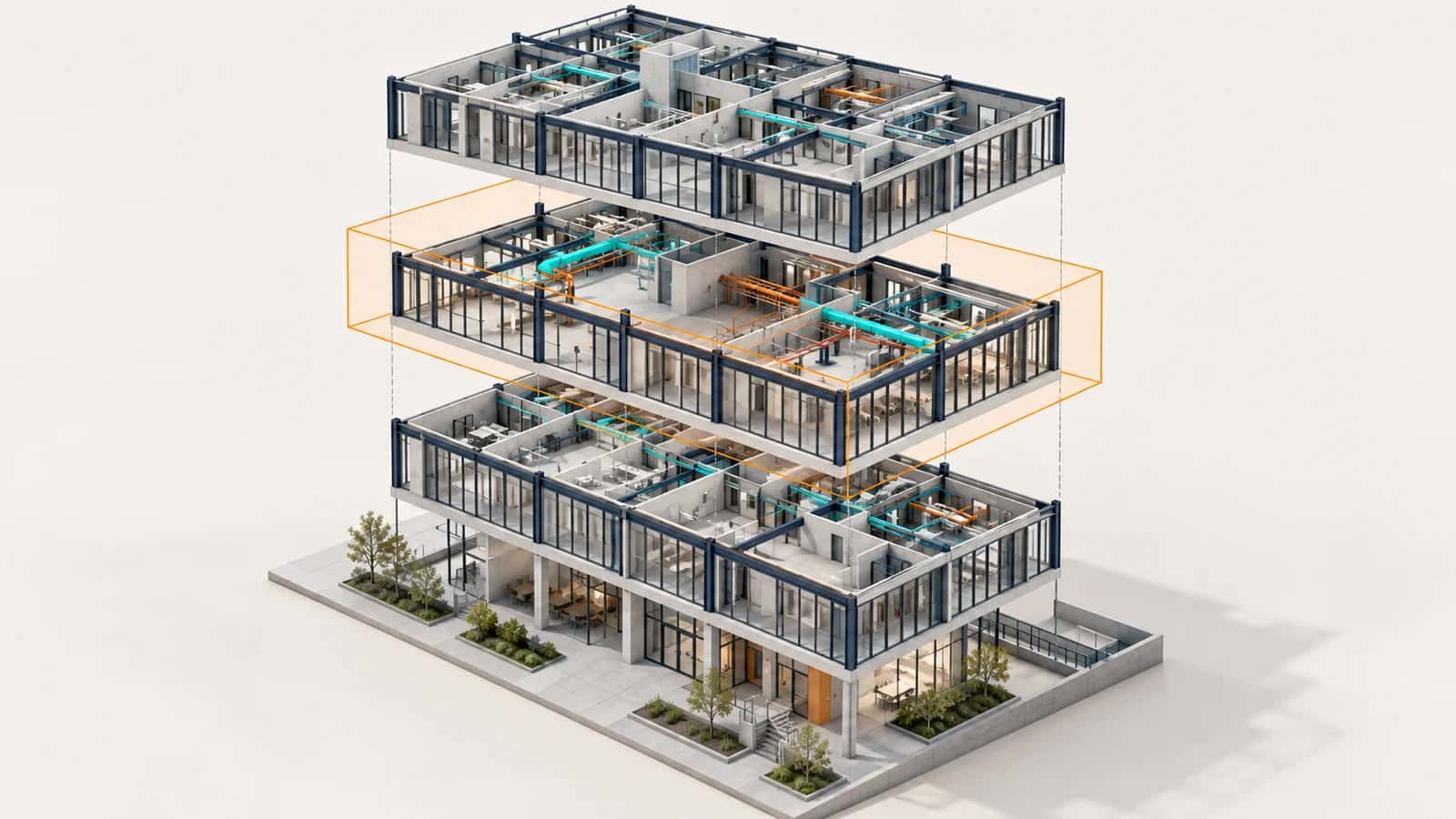
Prepare repeated floor and zone views with section boxes, naming and a shared template. EZ 3D View Creator can update matching views and optionally export the resulting views to NWC.
Practical guides for using this plug-inRevit and Navisworks plug-ins with one installer and one account. Subscribe to one, a bundle or all of them.
Create Revit 3D views by level and export them to NWC
Recorded in Revit with English narration and English and Spanish captions.
Open the demo and transcriptWorked example: prepare a floor-by-zone view package
Use two eligible levels and two host-model scope boxes as a small planning example. Check the planned combinations before creating views.
Before you start
- Revit 2024–2027 and EZ 3D View Creator with eligible access.
- A loaded level source and host scope boxes aligned with the intended coordination zones.
- A suitable view template; NWC export additionally requires the matching Navisworks exporter.
- 1.
Choose levels and zones
Select the host or linked level source and two eligible levels. Select two host scope boxes and confirm their extents and coordinate relationship to the source.
- 2.
Define crops and names
Choose bottom/top offsets, a coordination template and a naming pattern such as 3D_{Scope}_{Level}. Review duplicate names and invalid height ranges before proceeding.
- 3.
Review and create the views
Inspect the planned combinations and confirm the batch. Two eligible levels and two scope boxes can produce four views; inspect any skipped or failed combination.
- 4.
Inspect views and optional exports
Open representative lower and upper views. If export is needed, choose the NWC folder/link options and check coordinates in the coordination model. Use Update existing for a deliberate later refresh.
How to check the result
- Compare each section box with the intended level and zone.
- Verify slab inclusion, the highest top cut, view names and template visibility.
- Check exported NWC alignment separately from successful view creation.
Scope and limits: Planned names must be unique and each top must be above its bottom. NWC export availability depends on the installed exporter. Creating a view does not prove coordinate alignment of an exported model.
Questions about this workflow
Can levels come from a linked model?
Yes. Choose the loaded level source and check its placement against the host scope boxes and model.
Can I update previously generated views?
Use Update existing and the intended matching names. Review the planned scope and inspect the refreshed crops and template settings.
Is NWC export required?
No. You can create the views without export. Export requires the compatible Navisworks NWC exporter for the Revit version.
Set up the slices
Create and export
Levels, scope boxes and view settings
Generated view example
What it adds to this workflow
Need something custom?
We build custom Navisworks and Revit plug-ins for your workflow.
Request Development