What it solves and why you would use it
Revit’s normal room tags are view annotations. This tool places model families so room identities remain visible in a 3D model and downstream coordination views, then updates them when room data or geometry changes.
Before you start
Install the plug-in for your version of Revit and open a sample model.
Three numbered rooms, a linked architectural model, ceilings and the upper slab.
Open the tool: EZ VDC > Coordination > 3D Room Tag.
Worked workflows
Example: architectural rooms with structural slabs
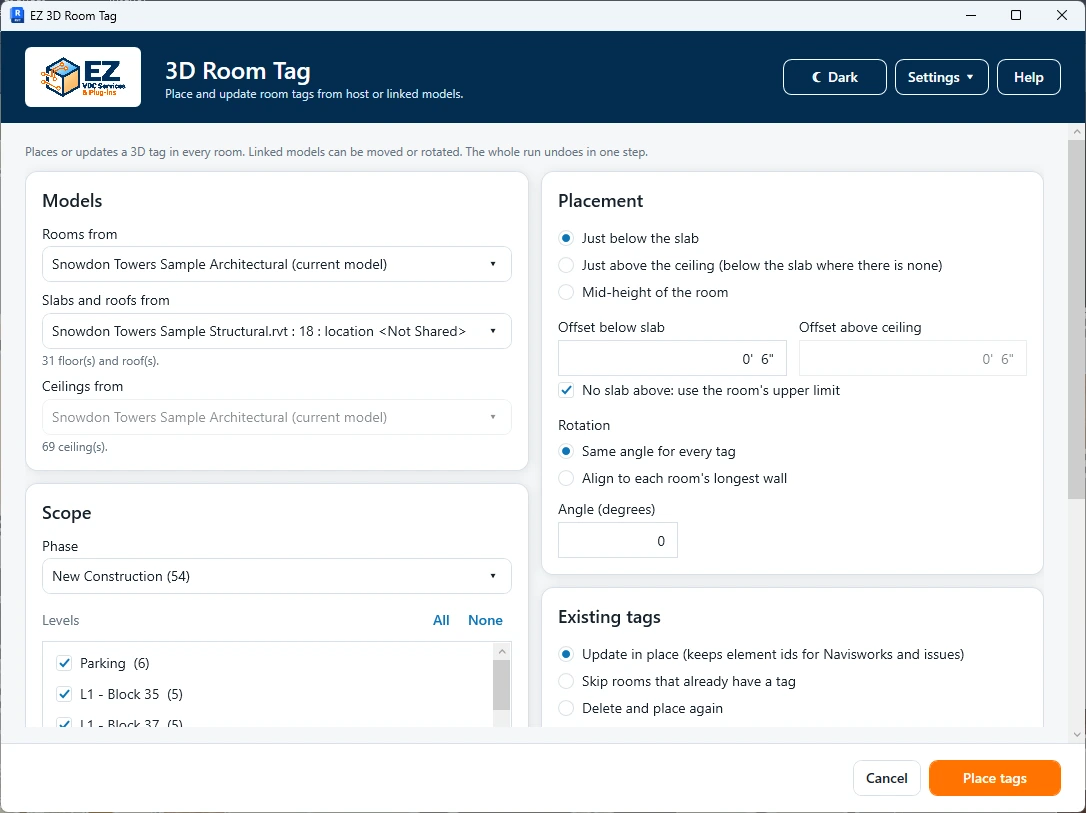
- Choose the architectural link for rooms and the structural link for slabs. Select the desired phase and one test level.
- Choose Below slab, enter the project-unit offset and use longest-wall alignment with 0° extra rotation.
- Check room data such as Department, choose Update in place and confirm Place tags.
- Inspect a tag’s location, NAME, NUMBER and Room Department. Review any fallback items before expanding to all levels.
Expected result: Model tags carry room identity and copied data, and a later update can preserve their native IDs.
Every button and parameter
Open a window or tab below to find its controls. Interface names match the plug-in; you can also search by function or unit.
19 of 19 reference entries
Sources and room scope
4 entries
Rooms, slabs and ceilings can be taken from different models. The output tags are placed in the current project.
- Room model
- Choose the host or a loaded link containing rooms. Existing tags are associated with this source and room number; inspect both before updating or deleting tags.
- Slab model
- Choose the model whose overhead slabs define the tag height. It can differ from the room source, such as a structural link above architectural rooms.
- Ceiling model
- Used by Above ceiling. Choose the model containing the ceilings; where no ceiling is found, that mode falls back to the slab.
- Phase and Levels · All / None
- Select the room phase and check eligible levels. All checks the displayed levels; None clears them. Level counts and the scope count help verify that the intended rooms are included; no matching rooms prevents placement.
Height, rotation and copied data
8 entries
All length fields use project units. The initial below-slab and above-ceiling offsets are 0.5 ft, converted for display.
- Just below the slab · Offset below slab
- Places the tag below the detected overhead slab by the entered length. This offset also applies when Above ceiling falls back to a slab. Use a parseable project length, including explicit units where useful.
- Just above the ceiling · Offset above ceiling
- Places the tag above a detected ceiling by this offset. If the room has no ceiling, uses Below slab behavior. This field is enabled only for this mode.
- Mid-height of the room
- Uses the room’s vertical extent instead of either offset. The offset inputs are disabled in this mode. Use it when labels should sit within the occupied room volume.
- No slab above: use the room’s upper limit
- Allows a tag based on room height when no overhead slab is detected. These fallback tags are reported for review. If disabled, rooms without the required overhead geometry are skipped.
- Rotation · Fixed angle / Longest wall / Extra rotation
- Fixed applies the entered angle in degrees to all tags. Align follows each room’s longest boundary edge; the field then becomes Extra rotation, added to that direction. Use 0° extra rotation for direct alignment.
- Room parameters · Filter and checkboxes
- Filter by parameter name, then check the values to copy. Name and number are always written. Additional values become text parameters named Room <parameter name> on the model tags; check a finished tag’s Properties to confirm them.
- Put tags on workset · Existing workset
- Available in workshared hosts. Check it and choose a current user workset for the tags. Unchecked uses the active workset. Worksets belong to the host, even when rooms come from links. If a remembered workset is unavailable, choose a valid one before placement.
- Add workset / New name / Add / Cancel
- Add workset opens the name editor. Enter a non-empty, valid, unique Revit workset name. Add accepts it as a pending choice; the workset is created only when Place tags runs. Cancel closes the editor without accepting the new name. An existing name must be selected from the list instead.
Existing tags and placement
7 entries
Choose deliberately between preserving identities and recreating elements. A room source helps keep tags from different models separate.
- Update in place
- Moves and rotates existing tags and updates their text while keeping their Revit element IDs. Extra duplicate tags for a matched room are removed. Prefer this for models linked to Navisworks issues.
- Skip rooms that already have a tag
- Leaves matched existing tags as they are and only adds missing ones. Existing text and positions are not refreshed.
- Delete and place again
- Deletes matched tags and places new family instances. New native element IDs can affect downstream references; use it when a deliberate full recreation is needed.
- Delete tags whose room number no longer exists
- Deletes orphan tags associated with the chosen room source. A room still present anywhere in that source is protected even if it is outside the selected phase/level scope. Leave unchecked if you want to review leftovers first.
- Place tags
- Validates scope, lengths and rotation, then shows the room count, update mode and copied-parameter count for confirmation. The result reports placement, updates, replacements, duplicates and rooms needing attention.
- Cancel
- Closes before placement without creating model tags.
- Result · Select items that need a look
- Selects reported host tags and linked rooms where possible. Use Revit Selection Box (BX) in 3D to inspect fallback heights or missing overhead geometry. Close dismisses the result.
Check the result
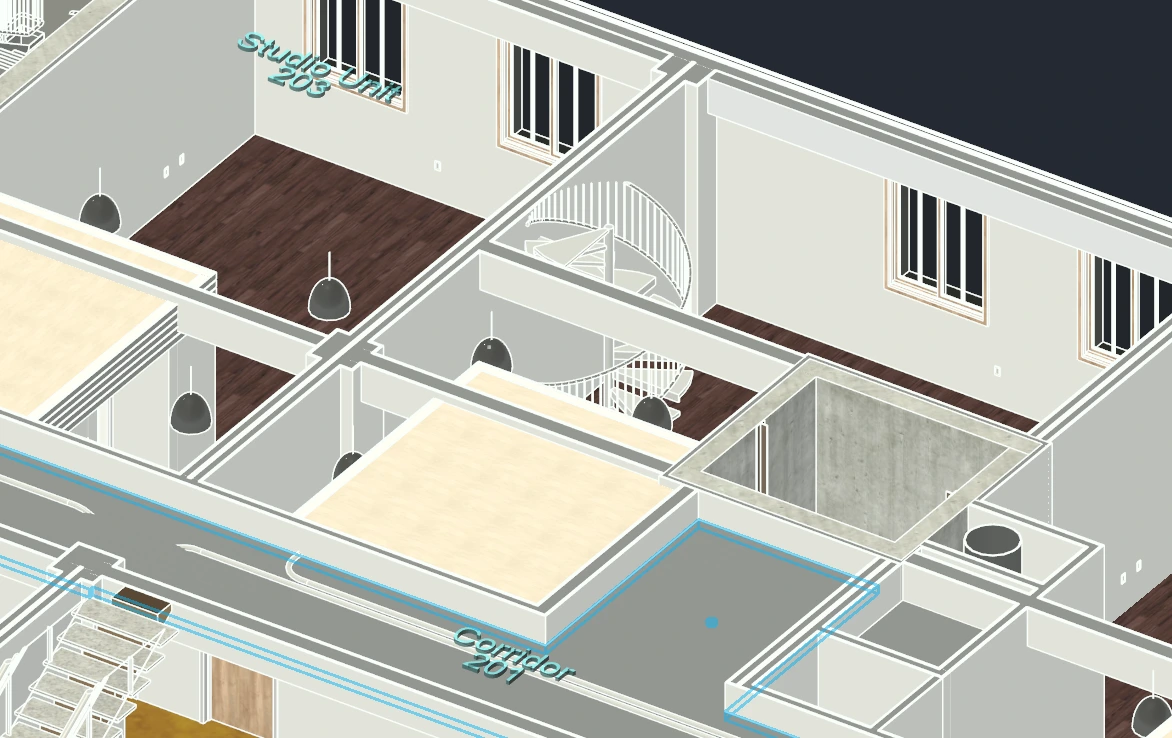
- Check moved/rotated linked-model placement and fallback heights in a 3D section. Review reported duplicates or missing-room-number cases before accepting the batch.
Troubleshooting and limits
- The tool needs placed rooms, loaded source models and the packaged tag family. Missing-family errors require repairing the add-in installation. Room numbers are part of matching, so renumbering deserves an orphan review.
Running it again
Update in place retains element IDs for downstream Navisworks/issues. Delete and place again changes identity.