What it solves and why you would use it
Model review involves repeated movement and tool switching. The navigation panel keeps movement keys, speed adjustments and review-tool shortcuts in one remappable layout; it is included with EZ Clash Manager.
Before you start
Install the plug-in for your version of Navisworks and open a sample model.
A small federated model with a corridor, plant room and saved start viewpoint.
Open the tool: EZ Add-Ins ribbon > EZ Navigation.
Worked workflows
Example: navigate to a clash and inspect clearance
- Enable the tool and focus the viewport. Use W/A/S/D with Q/E for vertical motion.
- Use F or G to slow down near the target; use R/T or temporary Shift only when a faster move is useful.
- For a quick section, double-click to activate Align to Surface, then click the surface you want to cut. Use 4 Section translate to move the cut if needed.
- Choose Z measurement or V shortest distance and check the native result. Space clears it.
- Switch to annotation as needed; Disable when returning to a different Navisworks tool.
Expected result: Faster model review with a consistent, saved key layout.
Every button and parameter
Open a window or tab below to find its controls. Interface names match the plug-in; you can also search by function or unit.
11 of 11 reference entries
Movement and speed
4 entries
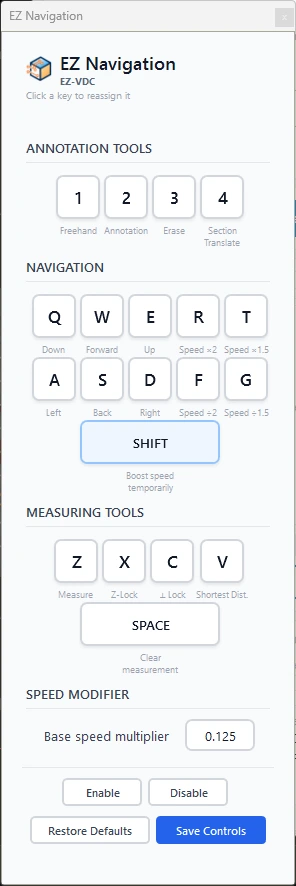
The labels below are the default keys. After remapping, the displayed keycaps show your chosen bindings. Enable navigation and focus the model viewport to use them.
- Q down / W forward / E up
- Q moves down, W moves forward and E moves up while the custom navigation tool is active. Test in a clear area and adjust speed before entering tight model spaces.
- A left / S backward / D right
- A moves left, S moves backward and D moves right relative to the viewing direction. Use with forward/up/down movement for model walkthroughs.
- R ×2 / T ×1.5 / F ÷2 / G ÷1.5
- R doubles speed, T multiplies it by 1.5, F halves it and G divides by 1.5. These adjust navigation speed during review; repeated presses can make motion very fast or slow.
- Base speed
- Finite number greater than zero; initially 0.25. Save Controls validates it and normalizes it into the supported 0.000001–1000000 range. It is a navigation speed value, not a project length field. Hold Shift for a temporary ×3 boost.
Review-tool shortcuts
3 entries
These keys select native Navisworks review tools. The resulting annotation/measurement behavior follows that tool.
- 1 Freehand / 2 Annotation / 3 Erase / 4 Section translate
- 1 chooses freehand markup, 2 annotation, 3 erase and 4 section translation. Section translation needs an applicable section setup; prepare the section before moving it.
- Double-click · Section Align to Surface
- With EZ Navigation enabled, double-click in the model viewport to activate the section Align to Surface command. Then click the model surface you want to cut. The section plane aligns to that surface, giving you a quick way to inspect the issue. The double-click starts the command; the following surface click chooses the alignment. Use 4 Section translate afterwards if you need to move the cut.
- Z Measure / X Z-lock / C Perpendicular lock / V Shortest distance / Space Clear
- Z selects measurement, X selects its Z-axis lock, C selects perpendicular lock and V selects shortest-distance measurement. Space clears measurement results. Use the appropriate mode for the distance being checked and inspect its reported endpoints.
Enable, remap and save
4 entries
Click a keycap to listen for a replacement key. The panel shows pending edits until you save.
- Enable / Disable
- Enable activates the custom navigation tool. Disable stops it so you can use other Navisworks tools. If a shortcut does not respond, check activation and viewport focus first.
- Click a keycap / Escape
- Click the action’s keycap, press the replacement key and read the status message. Escape cancels the listening state. Review assignments for unintended key conflicts before saving.
- Save Controls
- Commits pending key assignments and validated base speed to user settings. Read Controls saved successfully; closing with only pending edits is not the same as saving them.
- Restore Defaults
- Immediately restores and saves the default bindings and base speed. Use when the layout becomes confusing, then remap and save any desired changes again.
Check the result
- Test each remapped action in the viewport and reopen the control panel to confirm saved bindings and speed.
Troubleshooting and limits
- A shortcut needs viewport keyboard focus, an enabled navigation tool and a supported key assignment. Check those conditions and the displayed binding before changing speed or restoring defaults.
Running it again
Navigation settings and native model viewpoints have different purposes; save the model when keeping viewpoints.