What it solves and why you would use it
A raw clash count is not a coordination decision. The team needs meaningful test scopes, manageable groups, clear ownership, useful model views and a way to track resolution after revisions. Clash Manager brings these tasks together while retaining native test and clash identities.
Before you start
Install the plug-in for your version of Navisworks and open a sample model.
A federated architectural, structural and MEP model with two saved Clash Detective tests and about ten reviewable clashes.
Open the tool: EZ Add-Ins ribbon > EZ Clash Manager. Clash testing requires Navisworks Manage.
Worked workflows
Example: duct-versus-pipe floor review
- Prepare reliable duct and pipe search sets. Add a test, choose the two sets, Surfaces and the required test type/tolerance.
- Run the test; configure the grid/levels and Zones sets. Inspect location values before grouping.
- Select the test in Auto Groups and use Level then Proximity with a deliberate grouping distance. Inspect every group’s members.
- Populate Assignees, use Assign Rules or selected-row assignment, then filter Results by owner and level.
- Set distinct Item 1/2 colors, useful section/camera and review statuses. Export a filtered CSV or viewpoints for the reviewed scope.
Expected result: A manageable, assigned floor-level review with traceable native findings and readable model evidence.
Example: publish assigned findings to ACC
- Open the intended ACC model/project and populate actual project assignees. Select a small reviewed test scope.
- Sync Issues: choose Chosen tests, check that test and desired statuses, keep Update linked enabled.
- Set issue/viewpoint names and folder pattern. Configure camera/section and enable evidence refresh only when intended.
- Sync; wait for completion. Open Issue Viewer, refresh and inspect cloud title, assignee, screenshot and pin.
- After ACC review changes, use Issue Viewer Sync to bring linked issue changes back into clashes.
Expected result: Linked cloud issues with verified responsibility and model context, plus a defined return path for updates.
Example: coordinate a new model revision
- Save the current NWF and any report history you need; reload the intended model revisions.
- Update All and review new/persisting/resolved findings, grouping and assignment changes.
- Inspect groups with changed membership and missing level/zone data before publishing.
- Refresh existing viewpoints/screenshots when geometry or camera evidence is stale. Review orphan issue closure separately.
- Export updated reports; compact resolved results only after preserving the required coordination history.
Expected result: A controlled revision that separates model changes, review decisions, issue synchronization and history cleanup.
Every button and parameter
Open a window or tab below to find its controls. Interface names match the plug-in; you can also search by function or unit.
98 of 98 reference entries
Main window · Test list and batch operations
12 entries
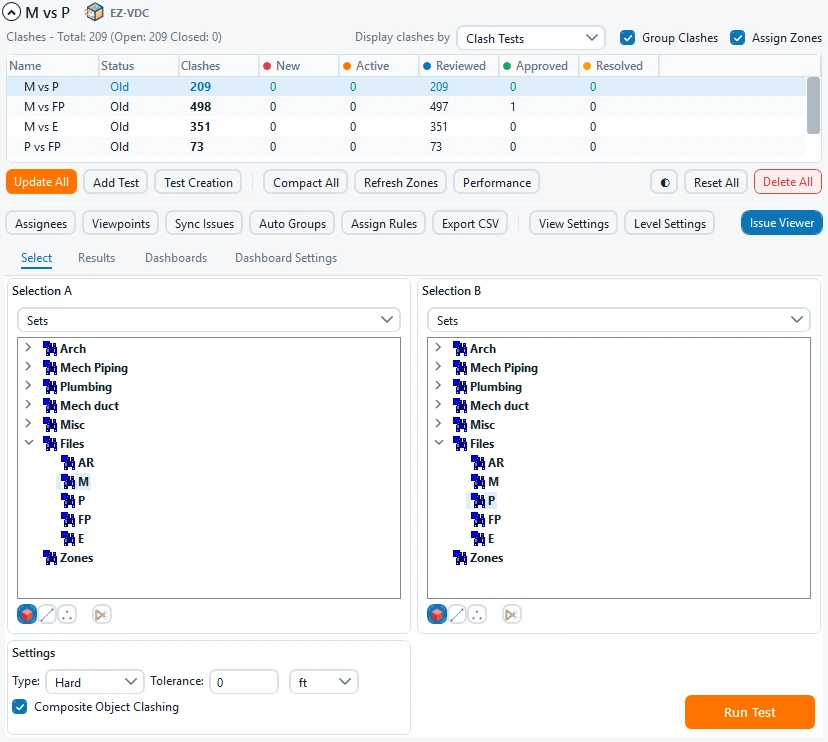
Use Navisworks Manage with Clash Detective and an open coordination model. Save an NWF before broad operations. Test-list scope and Results filters are separate choices.
- Display Clashes By
- Clash Tests lists native tests; Assignees organizes review by responsible person. Some test-management/grouping commands require Clash Tests mode. Switch back to it before selecting actual tests for those commands.
- Group Clashes / Assign Zones
- Enable post-update grouping and zone assignment; both start checked. Grouping uses saved Auto Groups settings. Zones require the project’s Zones search-set setup. These are automated follow-up behaviors, not visual filters.
- Tests · Name / Status / Clashes
- Name identifies the test and can be edited. Status describes whether its results are current relative to setup/model revisions. Clashes is the result count. Select a test to inspect its A/B settings and results before re-running.
- Tests · New / Active / Reviewed / Approved / Resolved counts
- Status totals help distinguish new findings, continuing clashes, reviewed/accepted cases and resolved results. They summarize the test; they are not measurements of interference depth or proof of design completion.
- Add Test
- Adds a native clash test manually. Name it, configure Selection A/B, type and tolerance on Select, then Run Test. It does not create a fully defined trade-pair matrix automatically.
- Test Creation
- Opens automatic test creation for selected A/B model items or sets. It creates test combinations with the chosen geometry/type settings; review the generated tests before Update All.
- Update All
- Re-runs all clash tests against current model data, then performs enabled follow-up grouping, zones and automatic assignment rules. Inspect changes in counts and existing links after a revision; Results filtering does not turn this into a selected-row update.
- Compact All
- Removes resolved results from all tests, including resolved members in groups. This trims history and can affect downstream references to removed results. Export/retain the record you need before compacting.
- Reset All / Delete All
- Reset clears results while keeping test definitions. Delete removes the tests themselves. Both are model-changing batch actions; check the intended scope and saved model before using them. Neither is a filter reset.
- Refresh Zones
- Reassigns zone metadata to clashes using the configured Zones search sets. Check the sets’ actual membership and names first; missing zones affect filtering, grouping and reporting.
- Theme ◐ / Performance
- Theme changes appearance. Performance opens timing diagnostics for operations on the current model; see the diagnostics chapter for recording/export controls.
- Test-list right-click menu
- Select all tests selects list rows; Copy test names copies their labels. Run Test, Compact Test, Reset Test and Delete Test act on selected tests. Duplicate tests copies configuration into uniquely named tests with no results. Export CSV and Viewpoint export settings open the same respective workflows as the toolbar.
Select tab · A/B geometry and test settings
8 entries
Selection A and B are the two test sides. Use meaningful trade/zone selections; an overly broad pair produces noise that later filters cannot correct.
- Select / Results / Dashboards / Dashboard Settings
- Select edits test inputs; Results reviews found clashes; Dashboards displays charts; Dashboard Settings defines chart configurations and their filters. Switching tabs does not itself rerun a test.
- Selection A / Selection B · Standard / Sets
- Standard lets you choose model-tree items; Sets uses selection/search sets. Choose and check the intended items independently on both sides. Search sets can provide repeatable property-based membership after model revisions.
- A/B · Surfaces / Lines / Points
- Each side has independent geometry flags. Surfaces includes triangulated solid/surface geometry; Lines includes line geometry; Points includes points. Enable the kinds actually present and relevant to your check, rather than expecting a line-only object to clash with Surfaces alone.
- A/B · Self-intersect
- Enables clash checking within the selection on that side. Use deliberately for internal conflicts; it expands the question beyond only A against B.
- Test type
- Hard finds actual intersections. Hard (Conservative) uses a more conservative intersection check. Clearance checks separation within the chosen distance, including collisions. Duplicates finds coincident geometry. Choose the type before interpreting tolerance and result meaning.
- Tolerance / Units
- Enter a finite, non-negative distance in ft, in, m, cm, mm, km, yd or mi. Units convert the same physical distance when changed. For Clearance this is the required separation threshold; choose it from the project’s coordination requirement, not an arbitrary default.
- Composite Object Clashing
- Treats composite objects as clash participants instead of only their individual geometry pieces. It can change result organization; compare a sample test before applying it to a large matrix.
- Run Test
- Runs the current selected test with its configured inputs. Read Results and count changes afterwards. Re-run after source geometry or test settings change; old results do not automatically prove the new model is clear.
Test Creation dialog
4 entries
Automatic creation defines many tests efficiently, but still requires intentional A/B selections and shared settings.
- Test Creation · Selection A / B
- Choose model-tree or set-based selections for both sides. The selected combinations become individual tests. Review names and trade pairs after creating the matrix.
- Test Creation · Surfaces / Lines / Points / Self on A and B
- The four flags on each side carry the same meaning as Select. Surfaces starts enabled; self-intersection is separate from the same-name test-pair option. Verify both sides’ geometry kinds.
- Test Creation · Type / Tolerance / Units / Composite
- These common settings are copied to generated tests. Tolerance must be finite and non-negative; the unit selector preserves physical distance. Choose Hard/Clearance/etc. appropriate to the full batch.
- Create Test against itself / Create Tests
- The checkbox includes same-selection/name pairs in the generated matrix. Create Tests creates the definitions; inspect their inputs, then run/update them. It does not mean every resulting clash has been reviewed.
Results tab · Identity, status and filters
12 entries
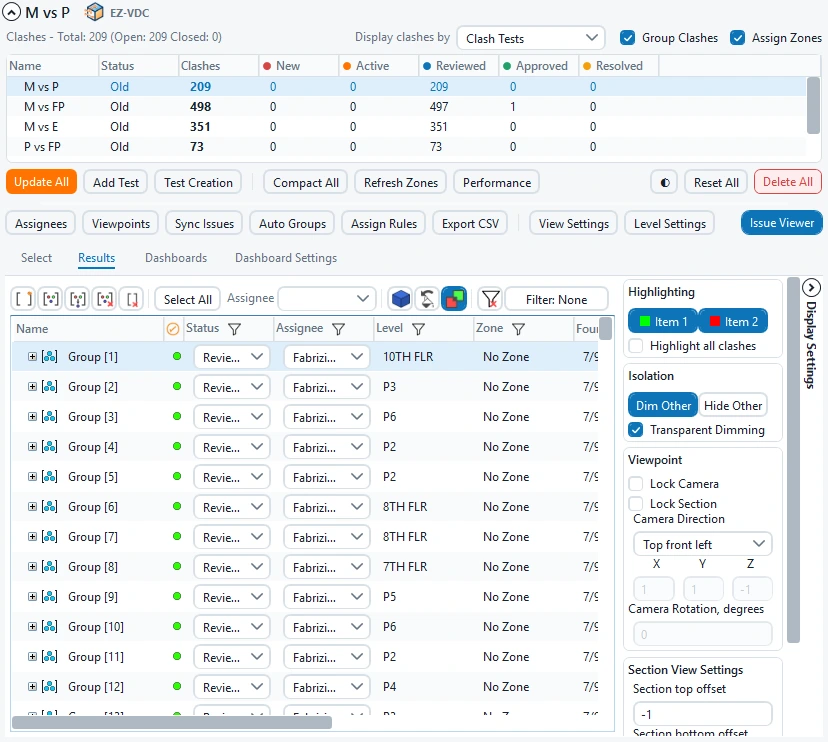
Select a clash or group to inspect the model. Groups reduce review volume but do not erase the underlying member clashes.
- Name / Viewpoint indicator
- Name can be edited to describe the coordination problem. The adjacent indicator identifies available clash-view context. Expand/collapse group rows to inspect individual members, and retain meaningful names when exporting issues.
- Status
- New is newly detected; Active persisted from an earlier run; Reviewed was marked reviewed; Approved records accepted findings; Resolved is absent on a later run. Approved persists on rerun; manually resolved geometry found again can become New. Changing status does not move source geometry.
- Assignee · Row / Bulk assignment
- The row dropdown edits that result’s responsible person. The toolbar Assignee applies to selected clashes/groups. Populate the project assignee list first and inspect selected rows before a bulk change.
- Level / Zone
- Location metadata used by filters, grouping, naming and reports. Level comes from the selected grid/level system; zone depends on Zones sets. Missing or wrong values require fixing the underlying setup, not just renaming a clash.
- Status filter · Any / None of / Select All
- Open the Status filter, check values, and choose Any to include them or None of to exclude them. Select All checks the choices. This narrows review; it does not bulk-change status.
- Assignee filter · Any / None of / Select All
- Includes or excludes checked assignee values. Useful for a trade-owner review; consider the unassigned choice when identifying work without responsibility.
- Level filter · Any / None of / Select All
- Includes or excludes checked levels. Use after Level Settings is correct; an empty/missing level is not evidence that a clash lies outside the building.
- Zone filter · Any / None of / Select All
- Includes or excludes checked zones. Verify Zones search sets when expected zone choices are missing.
- Filter OK / Cancel / Clear filters / Selected elements
- OK commits that filter popup; Cancel discards its pending choice. Clear filters resets Results filters. Selected elements restricts Results to clashes involving the model selection; turn it off to return to the full current result scope.
- Found / Approved / Approved by / Grid Intersection / Clash Point
- Read-only history and location columns: discovery time, approval time/person, nearest grid intersection and clash coordinates. Use them to explain reports and investigate locations, not as editable source-model parameters.
- New group / Group selected / Remove from group / Ungroup / Clear empty / Select all
- New group creates an empty container. Group selected combines checked/selected results. Remove moves members out of their group. Ungroup removes the container while retaining members. Clear empty deletes empty containers. Select all selects result rows for the next action; review active filters before bulk assignment.
- Results right-click menu
- View selected clashes frames the selection; Focus on clash frames one result locally. Go to linked issue opens its ACC issue. Set status changes selected results. Copy clash names/IDs copies references. Group selected is available for native test mode. Export CSV/viewpoint settings, Select all visible, Expand groups and Collapse groups support review/navigation.
Results · Highlighting, isolation, camera and section
7 entries
These controls change the review display, not the source geometry. Configure readable context before exporting viewpoints or issue screenshots.
- Quick section · Double-click with EZ Navigation
- With EZ Navigation enabled, double-click in the model viewport to activate section Align to Surface. Then click the surface you want to cut. The section plane aligns to the chosen surface so you can quickly inspect the clash or issue. The surface is chosen by the click after the double-click.
- Base appearance / Base with highlights / Clash appearance
- Base restores regular model appearance. Base with highlights keeps clash highlighting over that context. Clash appearance uses the configured transparent review style. Toggle deliberately when comparing model context with an isolated clash.
- Item 1 / Item 2 / Highlight all clashes
- Item 1 and Item 2 independently enable color highlights for the two sides. Highlight all extends highlight coverage to the displayed clash scope. Use distinct colors to identify which trade each item belongs to.
- Dim Other / Hide Other / Transparent Dimming
- Dim changes other geometry’s appearance while keeping context. Hide removes other geometry from the view. Transparent Dimming adds transparency to dimmed context. Check that useful surroundings remain visible before capturing an issue.
- Lock Camera / Lock Section
- Lock Camera keeps the current camera when selecting other clashes. Lock Section keeps the section configuration. Use for stable floor review; clear when you want each selected clash to determine framing/section.
- Camera direction / X / Y / Z / Rotation
- Choose a named direction or supply a custom direction vector. The XYZ values describe direction, not a camera location; use finite values and a non-zero vector. Rotation is in degrees around that direction. Initial vector 0,0,−1 is downward.
- Section · Top offset / Bottom offset / Units / Apply Changes
- Offsets adjust the review section limits using the chosen units. Initial top −1.5 ft and bottom −2 ft are displayed in the selected units. Changing units preserves distances. Apply Changes validates and stores the camera/section settings and updates the review display.
Auto Groups dialog
5 entries
Select the tests to group. Level/grid grouping requires a loaded grid system; it is unavailable without that location data.
- Auto Groups
- Opens automatic grouping. It can group selected tests now and retain rules for enabled post-update grouping. Inspect existing groups before choosing whether to keep them.
- Group By / Then By
- Primary and optional secondary grouping choices: None, Proximity, Level, Grid Intersection, Selection A/B, Model A/B, Assigned To, Approved By or Status. Use a meaningful hierarchy, such as Level then Proximity, instead of grouping only to reduce a count.
- Proximity / Units
- Finite non-negative grouping distance, displayed in the chosen length units. It is independent of clash-test tolerance: one finds clashes; the other clusters nearby results. Change units without changing the physical grouping distance.
- Keep existing groups
- Keeps established groups while grouping other results; initially off. With it off, automatic grouping can reorganize existing containers. Review whether manual grouping decisions should be retained.
- Group / Ungroup
- Group applies the selected hierarchy to checked tests. Ungroup removes their containers while retaining underlying results. Cancellation between tests can leave completed tests grouped; review the final scope before repeating.
Assignees and automatic assignment rules
7 entries
Responsibility is the bridge from a clash finding to actionable coordination. Use project members for cloud assignments.
- Assignees / Name
- Opens the project assignee list. With an ACC model it can load project members into Available. Without a usable member list, type a local assignee name. Local names still need a matching cloud member when assigning ACC issues.
- › Add / » Add all / ‹ Remove / « Remove all
- Add moves selected Available members, or the typed name, into the project list. Add all includes all available members. Remove deletes selected list entries; Remove all clears them. These list edits are saved immediately, so review before clearing.
- Assignees · Cancel / OK
- Both close the current dialog. Despite the Cancel label, already-applied add/remove actions are not rolled back; the list changes were written when each action ran.
- Assign Rules · Selection/Search Set / Assignee
- Map a set to its responsible person. Clashes involving that selection can receive the rule’s assignee. Use reliable dynamic set membership and order conflicting rules deliberately.
- Rules · Up / Down / Remove
- Up increases selected-rule priority; Down lowers it; Remove deletes the selected rule from the edited list. Put the intended winning rule before a broader overlap.
- Only unassigned / Apply automatically after Update All
- Only unassigned protects existing manual assignments; initially checked. Automatic post-update rules always operate on unassigned clashes. Clear Only unassigned only when intentionally replacing assignments in a manual apply.
- Rules · Cancel / Save / Apply selected tests
- Cancel discards the dialog’s pending rule edits. Save retains the rules without assigning now. Apply selected tests saves and assigns the selected native tests; inspect their resulting assignees.
Level Settings
2 entries
A usable grid system supplies level and intersection context to review, grouping and naming.
- Level Settings · System / Level checkboxes / Select All
- Choose the grid system and levels used for the project. Select All checks the level list; uncheck irrelevant levels. Verify representative clashes’ Level and Grid Intersection after applying.
- Level Settings · Cancel / OK
- Cancel closes without accepting pending choices. OK accepts the system/level setup used for subsequent clash location and grouping.
Color Settings · Model presets and channels
8 entries
Item 1, Item 2 and Other geometry each have their own RGB/transparency channel. Model presets are separate from user defaults.
- Color Settings · Preset / Apply / Save current / Delete / Use default
- Select or type a preset name. Apply restores it; Save current stores current channels/render mode; Delete removes the chosen preset. Use default returns to default settings. Model presets persist with the native document database; save the NWF to retain them.
- Render style
- Current retains the current mode; alternatives are Shaded, Wireframe, HiddenLine and FullRender. Choose based on readable clash context and the geometry detail required in a screenshot.
- Item 1 / Item 2 / Other geometry
- Select the channel being edited. The same picker applies to each, but values are independent. Choose contrasting item colors and a subdued context style.
- Red / Orange / Yellow / Green / Cyan / Blue / Purple / Gray / More…
- Color buttons apply their named preset to the active channel. More opens a full color chooser. They alter that channel, not the source model’s permanent materials.
- R / G / B values and sliders
- Red, green and blue each use 0–255. Type exact values or move the matching slider; the preview helps compare the composed color. RGB is color intensity, not opacity.
- T transparency value and slider
- 0–100% transparency. Zero is opaque; 100 fully transparent. Use moderate context transparency when hiding all surroundings would obscure the problem’s location.
- Issue pin X / Y / Z offset / Save Offset
- Project-specific displayed-pin correction in the current Navisworks document units. Enter finite values and Save Offset; it is enabled only for a recognized ACC project. It moves displayed pins, not source geometry. Check a known pin before applying a correction broadly.
- Color Settings · Close
- Closes settings. Check whether the desired model preset was saved and save the Navisworks file for persistent model configuration.
Viewpoints · Scope, naming, camera and section
13 entries
Native viewpoints create a navigable review package. The same camera/section options are reused by ACC issue screenshots and manual issues.
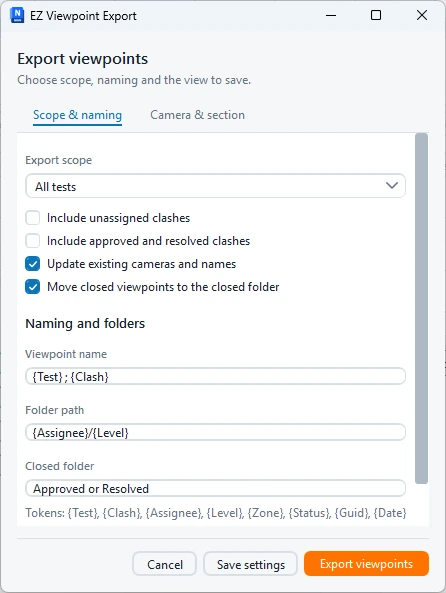
- Viewpoints / Scope & naming / Camera & section
- Opens export settings. Scope & naming chooses results and organization; Camera & section defines the model context captured for each result. Save settings alone does not export.
- Export scope
- Choose All tests, Selected tests or Selected clashes. Selected scope needs an actual selection and native-test context where applicable. Results filters are not interchangeable with every export scope; verify the intended set before exporting.
- Include unassigned / Include approved and resolved
- Both initially off. Include unassigned exports findings without responsibility. Include approved/resolved includes closed coordination states. Enable intentionally when preparing an audit package rather than only open assigned work.
- Update existing cameras/names / Move closed viewpoints
- Update refreshes existing exported views rather than leaving stale cameras; initially on. Archive moves closed viewpoints into the closed folder; initially on. Inspect the resulting folder structure after an update.
- Viewpoint name / Folder pattern / Closed folder
- Defaults: {Test} ; {Clash}, {Assignee}/{Level}, and Approved or Resolved. Tokens are case-sensitive: {Test}, {Clash}, {Assignee}, {Level}, {Zone}, {Status}, {Guid}, {Date}. / separates folder levels; empty levels or slashes in names are invalid. Missing values use NotAssigned.
- Camera direction
- Current preserves the prepared camera; named choices include Top, Bottom, Left, Right, Front, Back and four top-corner directions. Custom enables the XYZ vector. Initially Top. Choose a perspective that reveals both clashing members.
- Custom direction X / Y / Z / Rotation
- Finite, non-zero direction vector, initially 0,0,−1; these are not camera-position coordinates. Rotation is a finite degree value around that view direction. A zero vector is rejected.
- Projection
- Orthographic is the initial parallel projection. Perspective provides depth but can reduce legibility in tight service spaces. Choose the projection that best communicates the crossing and context.
- Enable section / Section mode
- Initially enabled in Clash focus. Clash focus clips all six sides around local clash context. Level uses the floor-level range; Clash bounds uses involved clash geometry. Scope and mode should expose the problem without unrelated building clutter.
- Clash focus padding
- Positive context margin around the clash, in Units below. Initial physical value 1.5 m, converted for display. Smaller padding gives a close view; larger padding preserves surrounding context. This is independent of test tolerance and Auto Groups proximity.
- Top / Bottom offsets / Units
- Finite section offsets; initial −1.5 ft top and −2 ft bottom, with ft initially selected. Switching units converts padding and offsets while preserving distance. Review section limits in a saved sample view.
- Circle clash / Circle size (%)
- Initially enabled. Circle radius accepts 1–25% of the view, initially 6%. Navisworks 2027 does not expose supported native saved-circle markup to this plug-in, so saved-view circle controls are disabled there; issue screenshot circles remain available. Inspect framing so the marker does not obscure the problem.
- Cancel / Save settings / Export viewpoints
- Cancel discards pending dialog edits. Save settings retains validated choices without exporting. Export viewpoints creates/updates the native view package. When opened for issue configuration, Apply view settings saves shared options and export-only fields are hidden. Save the NWF after exporting.
Sync Issues · Clashes to ACC
10 entries
This workflow can create/update cloud issues, refresh evidence and close orphaned linked issues. Begin with a small test selection and inspect the result in Issue Viewer.
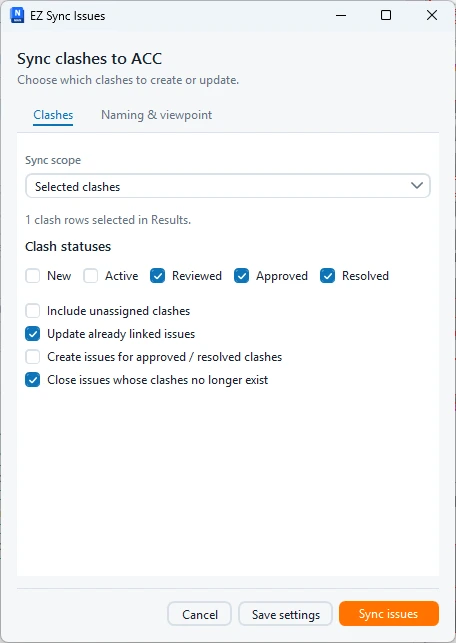
- Sync Issues / Clashes / Naming & viewpoint
- Opens sync options. Clashes chooses scope/statuses and existing-issue behavior; Naming & viewpoint sets titles, native view organization and screenshot settings. This is separate from Issue Viewer’s ACC-to-clash Sync.
- Sync scope / Test checkboxes / All / None
- Choose All tests, Chosen tests or Selected clashes. Chosen tests requires at least one checked test; All/None modifies that test checklist. Labels show test names/counts. Scope should be intentional before cloud writes.
- Sync · Status checkboxes
- Choose New, Active, Reviewed, Approved and/or Resolved; all begin checked and at least one is required. These select eligible clash statuses; they do not grant ACC status permissions or mean that all selected closed clashes will create issues.
- Include unassigned / Update already linked issues
- Unassigned initially off; include only when ownerless issues are intended. Update linked initially on, so previously connected issues can be refreshed instead of duplicated. Verify cloud assignees resolve to current project members.
- Create issues for approved/resolved / Close orphan issues
- Both initially off. Create closed allows new issues for closed clash states. Close orphans writes closure to linked ACC issues whose clashes no longer exist; confirm source/test completeness before enabling it. Missing data should not be mistaken for intentional closure.
- Issue name / Viewpoint name / Viewpoint folder
- Initial issue/viewpoint names {Test}_{Clash}; folder ACC Issues/{Test}. Uses the same case-sensitive tokens as viewpoint export, with / for folder levels. Include enough context to distinguish tests and findings without exposing unusable empty names.
- Viewpoint settings… / Refresh existing viewpoints and screenshots
- Open the shared camera/section dialog and Apply view settings. Refresh existing evidence is initially off; enable to replace stale linked viewpoints/screenshots after geometry or camera changes. New issues still need their initial view context.
- Cancel / Save settings / Sync issues
- Cancel dismisses pending edits. Save settings stores options without cloud synchronization. Sync issues validates scope/statuses/naming and starts creation/update operations. Wait for completion, inspect failures and refresh Issue Viewer before retrying to avoid duplicates.
- Issue Viewer
- Opens the detailed ACC issue panel for review, title/status/assignee changes, pins, comments and attachments. Its own tutorial explains every control and the reverse sync direction.
- ACC Help · App name / Client ID / Close
- The integration help displays read-only app identification for the ACC account administrator and issue-permission guidance. Use the values supplied by the installed dialog; Close dismisses help.
Dashboards and CSV/PDF reporting
7 entries
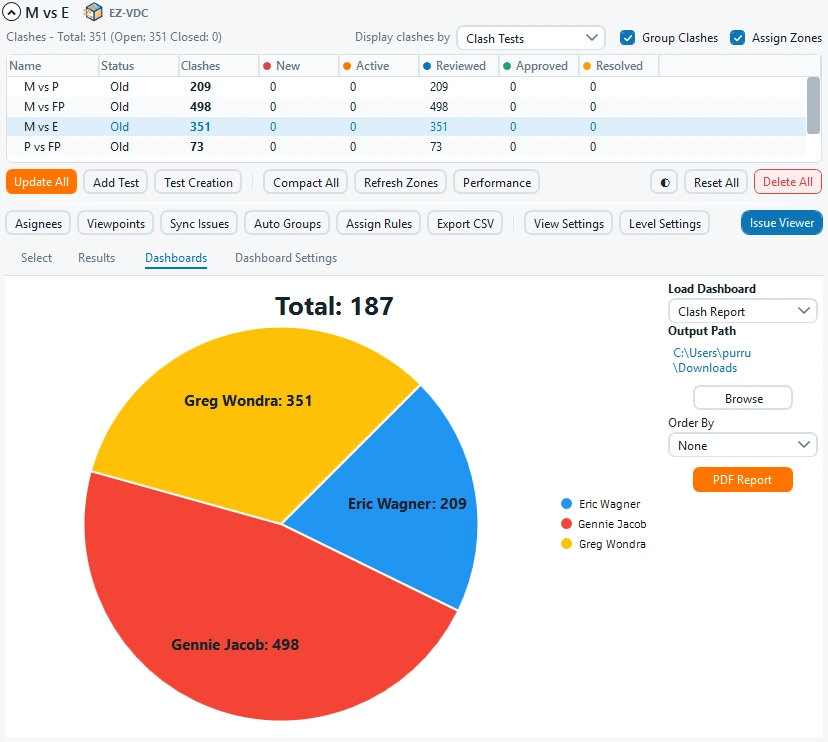
CSV reports the displayed result scope. Dashboard definitions have their own grouping and filters; compare their population before treating two totals as equivalent.
- Export CSV
- Exports Results with current filters and sort for Excel. Retain the test/scope context alongside the file; hidden results are not automatically included in this visible-results export.
- Dashboard selection / Order By
- Choose a saved chart. Order By options are None, Status, Assignee, Level, Zone and Clash Test; these organize the dashboard/report review. Inspect chart population and labels.
- Browse report destination / PDF Report
- Browse selects the output destination. PDF Report generates the chart/report output; inspect resulting pages, filtering and counts before sharing. Exporting is separate from changing clash statuses.
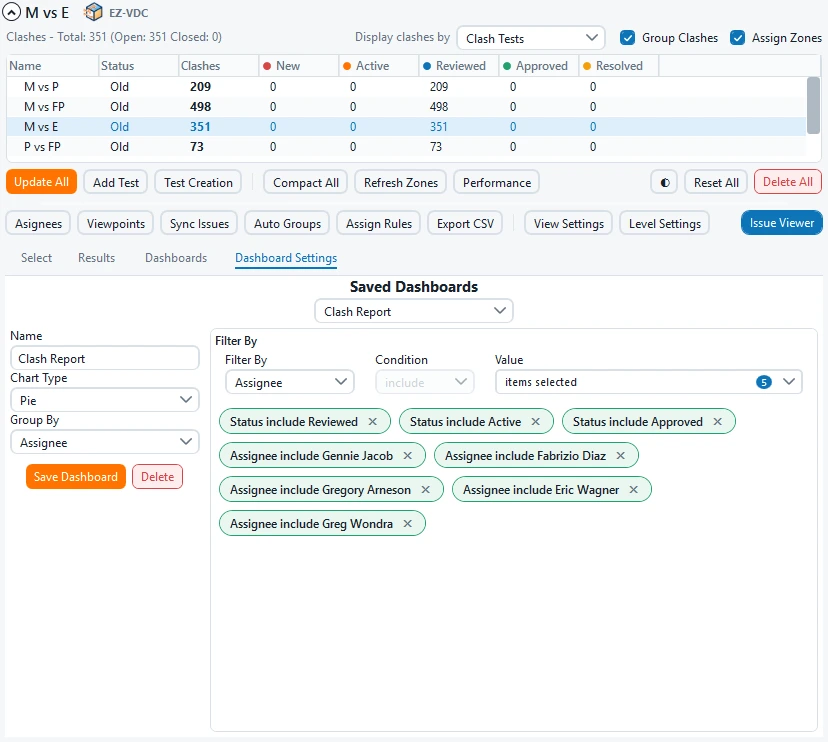
- Dashboard Settings · Existing / Name / Chart
- Select an existing definition or name a new one. Charts are Pie, Bar, Stacked Bar and Burndown. Burndown uses found/closed timestamps; a closure without a timestamp is shown at today, so it is not a full historical snapshot database.
- Group By / Stack By
- Group by Status, Assignee, Level, Zone or Clash Test. Stacked Bar adds a second breakdown via Stack By. Burndown does not use the normal grouping choice. Choose axes that answer the actual coordination question.
- Filter By / Include or Not include / Values / Remove filter
- Choose a metadata field, include/not include and one or more values. Remove deletes that selected dashboard filter. These conditions belong to the saved dashboard definition, not the Results column-filter popups.
- Save Dashboard / Delete
- Save stores the name, chart, grouping, stacking and filters. Delete removes the selected dashboard definition, not its underlying clashes. Return to Dashboards to inspect the saved result.
Performance diagnostics
3 entries
Use timings to identify slow operations on an actual model. They are local measurements, not a cross-machine performance guarantee.
- Record operation timings
- Enables local operation measurements and retains up to the latest 500 samples. Run the operation being investigated, then refresh/review the timing summary.
- Operation / Samples / Average ms / 95th % ms / Max ms / Latest ms
- Read-only operation name and sample count plus mean, 95th-percentile, maximum and most recent durations in milliseconds. Compare the same operation and model scope; a small sample does not establish typical performance.
- Export CSV / Copy timings / Clear / Close
- Export writes timing data to a file; Copy places it on the clipboard. Clear resets measurements. Close dismisses diagnostics without clearing clashes or test results.
Check the result
- Verify one test’s A/B membership, tolerance units and a known clash before the full matrix. Compare filtered CSV rows, dashboard population and exported viewpoints with the intended scope.
- Inspect linked ACC issue updates and pin/model alignment in the target project. Save and reopen the NWF to confirm model presets, native views and coordination metadata persist.
Troubleshooting and limits
- Grid/level data and Zones sets are prerequisites for accurate location grouping. Test reset, deletion, compaction and orphan issue closure are different operations with different history effects. Diagnose missing scope/data before repeating cloud writes.
Running it again
Update existing viewpoints with their linked identity instead of making duplicate folders. Cancellation of viewpoint export retains completed viewpoints.
Reference screenshots
For native host definitions, see Autodesk’s test types and result statuses.