What it solves and why you would use it
A coordination team needs to see what exists at each step, what is being installed or removed, and what comes later. EZ 4D combines element assignments, editable ordering, appearance rules and recoverable run snapshots.
Before you start
Install the plug-in for your version of Navisworks and open a sample model.
Three model zones labeled 01 Structure, 02 Services and 03 Finishes; one optional demolition step.
Open the tool: EZ Add-Ins ribbon > EZ 4D.
Worked workflows
Example: installation followed by demolition
- Select model objects, enter a value such as 01 - Install services and Assign. Repeat for a demolition group.
- Refresh model and order the rows; set each row to Install or Demolish and choose contrasting colors.
- Set past appearance, future transparency and camera mode; Save now.
- Generate viewpoints, inspect each step and Play at the required delay.
- Save the NWF and keep its .ez4d sidecar. After changing membership/order, generate a full new run.
Expected result: A saved, inspectable sequence with recoverable editing state.
Every button and parameter
Open a window or tab below to find its controls. Interface names match the plug-in; you can also search by function or unit.
29 of 29 reference entries
Assign elements to sequence values
6 entries
Assignments are model properties under EZ-VDC / EZ-4D. Step exclusion and assignment deletion are different operations.
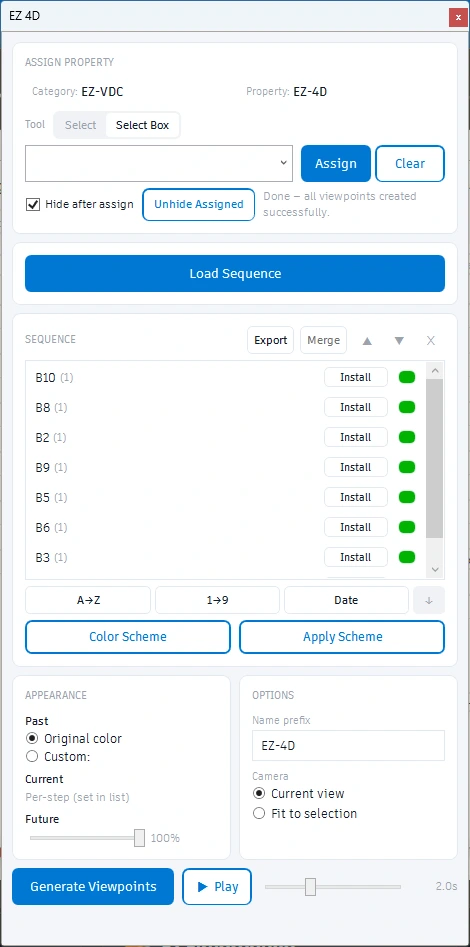
- Select / Select box
- Select chooses individual model objects; Select box uses rectangle selection. Choose the tool before selecting the members for the next sequence value. Inspect the model selection count.
- Sequence value / Assign
- Type a new value or choose an existing one, select model objects and Assign. The value groups those members into a step. Use consistent names or dates if you plan to sort automatically. Assignment changes refresh model values.
- Clear
- Removes the EZ 4D assignment from selected objects while preserving their unrelated property data. Use to correct membership; removing a sequence row alone does not clear its model property.
- Hide after assign / Unhide assigned
- Hide after assign hides processed objects to make unassigned geometry easier to select. Unhide assigned makes assigned objects visible again for review. These are model visibility actions.
- Refresh model
- Reads sequence values from the current model again while retaining known order, step colors, Install/Demolish types and exclusions. New values are merged in; steps with missing members are flagged. Use after model/property revisions.
- CSV
- Exports the current sequence information as CSV for review. Check the exported order and membership against the model before sharing it as the construction sequence.
Order, membership and step controls
7 entries
The displayed sequence order drives generation. Select rows before Merge, move, remove or context-menu actions.
- Merge
- Combines two or more selected steps in the editing sequence. Inspect the resulting membership and order before generating a new run.
- ▲ Up / ▼ Down
- Moves selected steps earlier or later. This changes construction order; generate a full new run after order changes.
- Remove × / Restore removed steps
- Remove excludes selected steps from the sequence but keeps the model assignments. Restore removed returns excluded steps for reuse. Clear is the separate command for deleting assignments.
- Install / Demolish
- Click a row’s type button to change its role, or use Set as Install / Set as Demolish from the context menu. Installation and demolition affect how members appear through successive steps. Regenerate the full sequence after type changes.
- Step color
- Sets the current-step highlight color for that row. Check contrast against past and future appearance. A saved step can be regenerated for a color-only change when its run configuration still matches.
- A→Z / 1→9 / Date / Descending
- Sort alphabetically, numerically or by parsed dates. Descending reverses the selected sort. Use the mode that fits the values, then inspect the actual row order; names that look like dates/numbers may not parse as intended.
- Regenerate this step
- Rebuilds a selected saved step for supported color/camera changes. It requires a completed run with matching sequence and global options. Order, members, Install/Demolish or global appearance changes require Generate viewpoints for a full new run.
Appearance and generation
6 entries
Past, current and future appearance communicate the sequence. Playback delay only affects viewing speed; it is not a construction duration.
- Past elements · Original appearance / Custom color
- Original retains the model’s appearance for past elements. Custom applies the chosen past-elements color. Select Custom before choosing its color; inspect it alongside the current-step highlight.
- Future transparency
- 0–100%: 0 is opaque, 100 is fully transparent. Initially 100. Choose a lower value when future geometry should remain visible as context.
- Viewpoint name prefix
- Initial value EZ-4D. Used to name the generated run/viewpoints. Use a recognizable project/run label and inspect the saved run list after generation.
- Current view / Fit to selection
- Current view uses the camera you prepared in Navisworks. Fit to selection frames the step members. Camera choice affects viewpoint generation; set it before the run.
- Generate viewpoints
- Creates a new saved run and native viewpoints using the current order, memberships, types, colors and global options. Read completion/partial-run status; cancelled runs may retain partial output for review. Save the Navisworks model to retain native data.
- Play / Stop / Playback delay
- Play steps through the chosen run’s saved viewpoints; the button becomes Stop during playback. Delay is 1–4 seconds per viewpoint, initially 2, with 0.1-second increments. Stop ends playback without deleting the run.
Color schemes
5 entries
A scheme is an ordered palette, separate from model memberships. Apply it to the sequence before generating.
- Color scheme / Apply scheme
- Color scheme opens the palette editor. Apply scheme assigns the active palette to sequence rows. Review the resulting colors before regenerating saved viewpoints.
- Scheme name / Palette color
- Name the reusable scheme and click each color swatch to edit it. Palette order determines color order when applied.
- + Add color / Remove ×
- Adds a palette entry or removes its row. Keep enough distinct colors for readable successive steps.
- Import scheme / Export scheme
- Load a scheme file or save the palette for reuse. These transfer colors, not the model sequence.
- Cancel / Use scheme
- Cancel dismisses the editor. Use scheme accepts the palette; then Apply scheme on the main pane to assign it to rows.
Saving and recovery
5 entries
Sequence edits autosave after a short pause and at document/pane changes. Native assignments and viewpoints also require saving the Navisworks model.
- Save now
- Immediately writes the sequence state. Check the save-status message; hover for the file path. Keep the adjacent .ez4d file with the model when transferring it. A local recovery file is used when the normal destination cannot be written.
- Saved run / Refresh / Restore sequence
- Select a saved run for playback or restoration. Refresh reloads available runs. Restore sequence recovers the selected run’s editable snapshot, including order, types, colors and exclusions. Older viewpoint-only runs can play but cannot reconstruct missing editing metadata.
- Export sequence / Open sequence
- Exports or loads a portable sequence file. Loading another model’s sequence maps its values to current model assignments; it cannot supply that other model’s native viewpoints. Inspect missing/empty steps after import. Same-model recovery can restore saved run history.
- Error ×
- Dismisses the visible error banner; it does not repair a failed save/generation. Read the message and resolve its cause before proceeding.
- Theme / Settings / Help
- Theme switches the pane’s light/dark appearance. Settings scrolls to the appearance controls. Help opens the in-pane workflow explanation; use it when you need the assignment/save distinction.
Check the result
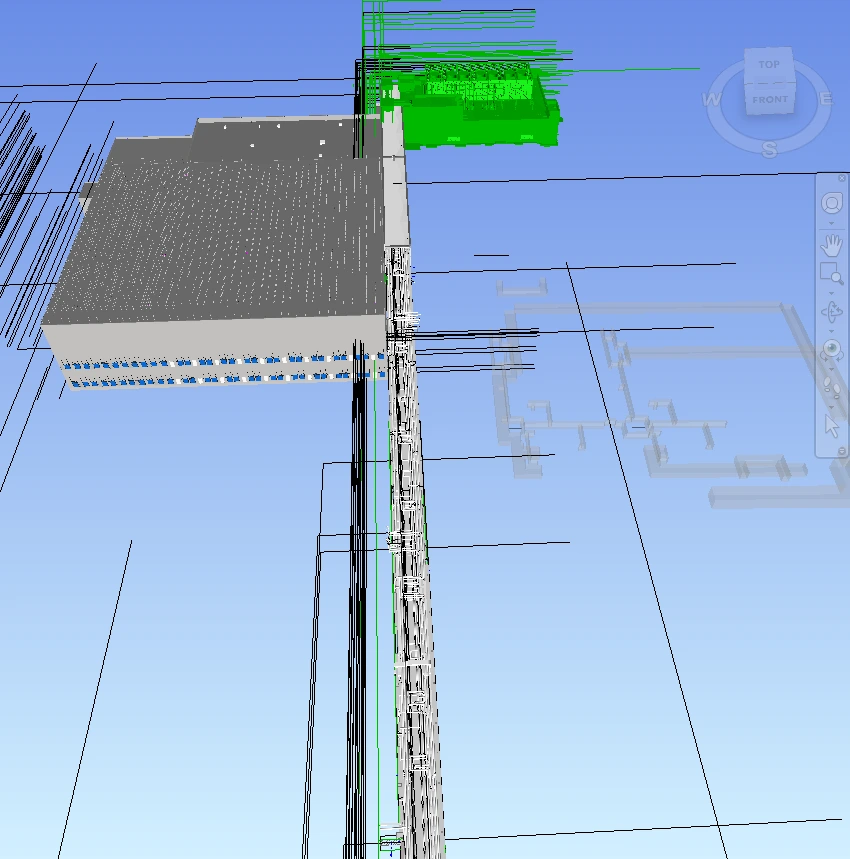
- Inspect first, middle, demolition and last steps. Verify members, camera and visibility—not just viewpoint count. Reopen the saved model to check recovery and run history.
Troubleshooting and limits
- Empty steps indicate missing/unmatched assignment values. Partial runs should be reviewed before playback. A sequence file alone does not replace a saved model containing its assignments and viewpoints.
Running it again
Reorder, membership and type changes require full regeneration; Regenerate this step updates only the selected saved step.