What it solves and why you would use it
Search Sets can support repeatable clash tests, selections and reports after model changes. The tool discovers properties, scans distinct values and builds search conditions instead of freezing the current selection into static sets.
Before you start
Install the plug-in for your version of Navisworks and open a sample model.
A model with Element > System Type values for HVAC, plumbing and fire protection.
Open the tool: EZ Add-Ins ribbon > EZ Search Sets.
Worked workflows
Example: search sets by MEP system
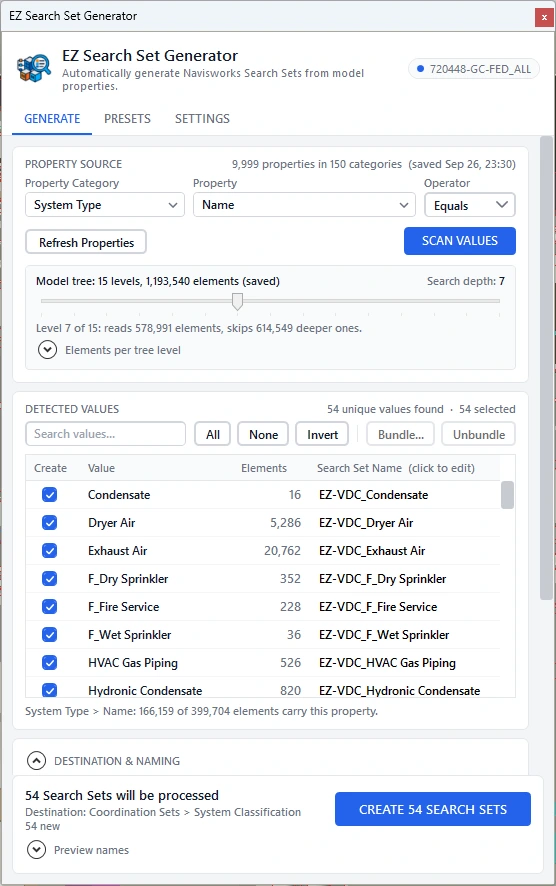
- Refresh Properties and choose the model’s system category/property. Scan values and compare a sample element’s Properties.
- Check desired systems, name them consistently and bundle values only when they should belong to one OR search.
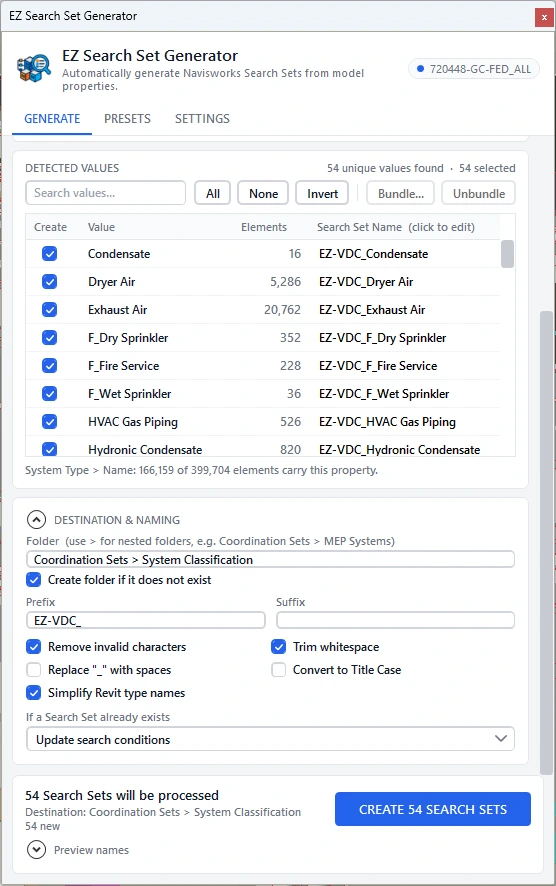
- Choose Coordination > MEP > Systems, enable folder creation and use Update conditions for repeat runs.
- Create sets, inspect result counts, then select each set in Navisworks and verify its actual members.
- Save a preset; after a model revision refresh/scan and update the same sets.
Expected result: Dynamic searches that can be reused by coordination tools and refresh their membership with model data.
Every button and parameter
Open a window or tab below to find its controls. Interface names match the plug-in; you can also search by function or unit.
24 of 24 reference entries
Discover the property and values
6 entries
Use the property names visible in the model’s Navisworks Properties panel. Searchability depends on data actually present in the loaded model.
- Generate / Presets / Settings
- Generate scans and creates sets. Presets stores reusable generation configurations. Settings controls discovery, matching, defaults and diagnostics.
- Property category / Property
- Category is a Properties tab such as Element, Item or IFC. Type to search either picker, then choose the exact property. The grey property count indicates how many discovered elements carry it, not the number of distinct values.
- Operator
- The current version creates Equals searches. Choose values representing the exact membership you need; other comparison operators are not available in this version.
- Refresh Properties
- Rediscovers available category/property names. Use after loading or revising model files, especially if expected properties are missing from the pickers.
- Search depth
- Controls how many model-tree levels are read from the model file roots. Deeper nodes are often geometry without useful properties. Increase coverage when needed, balancing completeness and scanning time.
- Scan values
- Reads distinct values and counts for the chosen property at the configured depth. Review the results before selecting rows or naming sets; it does not create sets yet.
Select, name and bundle values
5 entries
The checkbox is the creation choice. Row highlighting is used for row actions such as Bundle; check the creation count before proceeding.
- Filter values
- Filters the displayed value list by entered text. Inspect which rows remain checked before creation; filtering the display is not a new model search condition.
- All / None / Invert
- All checks eligible values, None clears them and Invert reverses the checked state. Review the create count and any non-creatable rows before running.
- Create / Value / Elements
- Create enables that value’s search. Value is the original model property value; Elements is its scanned count. A friendly set name changes presentation, not the underlying property match.
- Search Set Name
- Edit a row’s proposed name. Clearing a custom name restores automatic naming. Giving multiple checked values the same name bundles their Equals conditions with OR into one Search Set.
- Bundle… / Bundle name / Bundle / Cancel / Unbundle
- Select at least two eligible rows, open Bundle, enter a non-empty name and confirm. Cancel dismisses the name prompt. Unbundle removes the shared naming override so values return to separate automatic names. Bundling does not replace the raw source values.
Folders, name cleanup and duplicate policy
6 entries
Inspect the final names: cleanup can make different raw values share one name and therefore one bundled set.
- Folder / Create folder if missing
- Use > to separate nested folders, for example Coordination > MEP > Systems. Blank creates sets at the Sets root. Enable creation if the destination folder does not already exist.
- Prefix / Suffix
- Added before/after each generated name, including custom and bundled names. For example MEP - plus Supply Air becomes MEP - Supply Air.
- Remove invalid characters / Trim whitespace
- Remove strips control characters and characters that conflict with names/exports, including /, , :, *, ?, quotation marks, <, > and |. Trim removes edge whitespace and collapses repeated spaces. Neither changes raw search values.
- Replace underscores / Title Case / Simplify Revit type names
- The underscore option replaces underscores with spaces. Title Case preserves recognized MEP acronyms. Simplify converts references such as MechanicalSystemType "Supply Air" into Supply Air, removing the wrapper and optional exported element ID. Review naming collisions.
- Existing Search Set handling
- Update conditions preserves the existing set identity/location and replaces its conditions. Skip leaves it untouched. Replace deletes/recreates and can affect linked uses. Create duplicate gives a numbered name. Prefer Update when clash tests refer to those sets.
- Create N Search Sets / Cancel / Done
- Create uses checked rows and the chosen duplicate policy; the displayed count includes bundling. Cancel requests cancellation during creation. Done dismisses the result summary. Read created/updated/skipped/failed counts and any count-verification mismatches.
Presets
2 entries
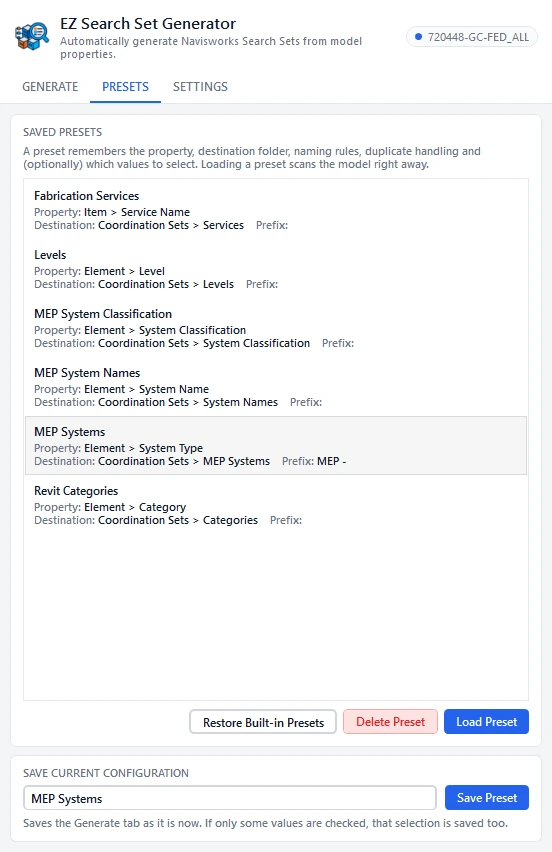
A preset captures generation choices so the same property/folder/naming policy can be reused.
- Preset name / Save Preset / Load Preset
- Name and save the current configuration. Select a preset and Load to apply it, then inspect the model’s available property names and scan values again. A preset does not guarantee that another model has those properties.
- Delete Preset / Restore Built-in Presets
- Delete removes the selected saved preset. Restore reinstates built-in preset definitions. These change configurations, not already-created model Search Sets.
Matching, cache and diagnostics
5 entries
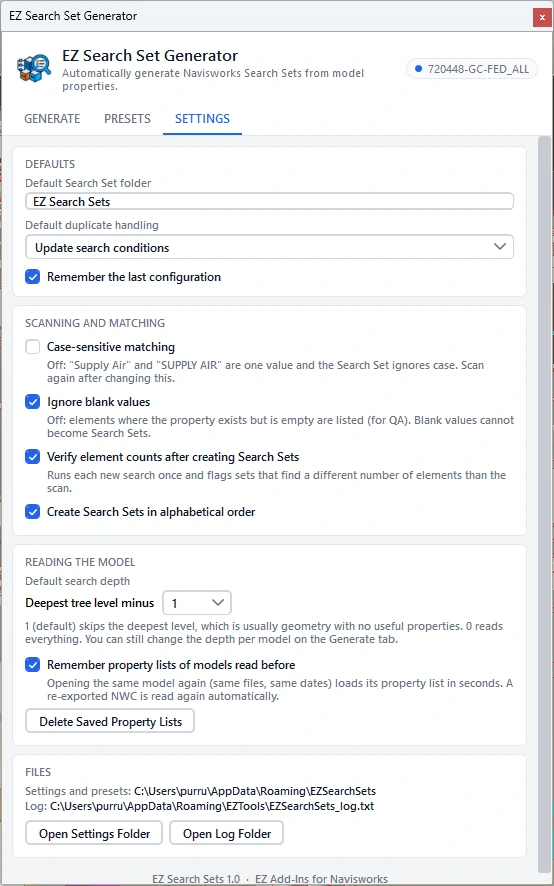
Settings are defaults for future discovery/generation; inspect the Generate page before applying them to a model.
- Default folder / Duplicate handling / Remember last configuration
- Default folder initially EZSearchSets and duplicate handling initially Update conditions. Remember last configuration reopens the last setup instead of starting only from defaults. > remains the nested-folder separator.
- Case-sensitive matching / Ignore blank values
- Case-sensitive separates differently cased values; otherwise Supply Air and SUPPLY AIR can share a match. Ignore blank omits empty values; disable it when an explicit blank-value set is useful.
- Verify element counts / Alphabetical creation
- Verify counts evaluates created searches against scanned counts and reports mismatches. Alphabetical creation orders sets by name; it does not change condition membership.
- Skip deepest levels / Remember property lists / Delete Saved Property Lists
- Skip deepest levels avoids low-value geometry nodes during discovery; initial skip is one level. Remember property lists caches prior discovery. Delete clears that cache, not model Search Sets; use before a fresh discovery when stored lists are stale.
- Open Settings Folder / Open Log Folder
- Opens the local configuration/cache folder or diagnostic logs. Use logs to investigate discovery or creation failures without editing model sets manually first.
Check the result
- Verify a bundled search includes each intended raw value and no unintended values. Recheck counts after a revision and confirm downstream clash tests still reference the same sets.
Troubleshooting and limits
- Missing properties may require deeper discovery or fresh property lists. Changing a set’s name is not the same as changing its search. The current operator is Equals; do not expect wildcard membership from name cleanup.
Running it again
Prefer Update search conditions for sets referenced by clash tests. Generation is planned before the document write phase.
Reference screenshots