What it solves and why you would use it
An issue needs model context, responsibility, discussion and status—not just a clash row. Issue Viewer brings those details into coordination review and can pull ACC changes back into linked clashes. It is included with EZ Clash Manager.
Before you start
Install the plug-in for your version of Navisworks and open a sample model.
A test Autodesk project with three issues, one linked clash, an attachment and a model pin.
Open the tool: EZ Add-Ins ribbon > Issue Viewer, or the Issue Viewer button in EZ Clash Manager.
Worked workflows
Example: review a clash-linked issue
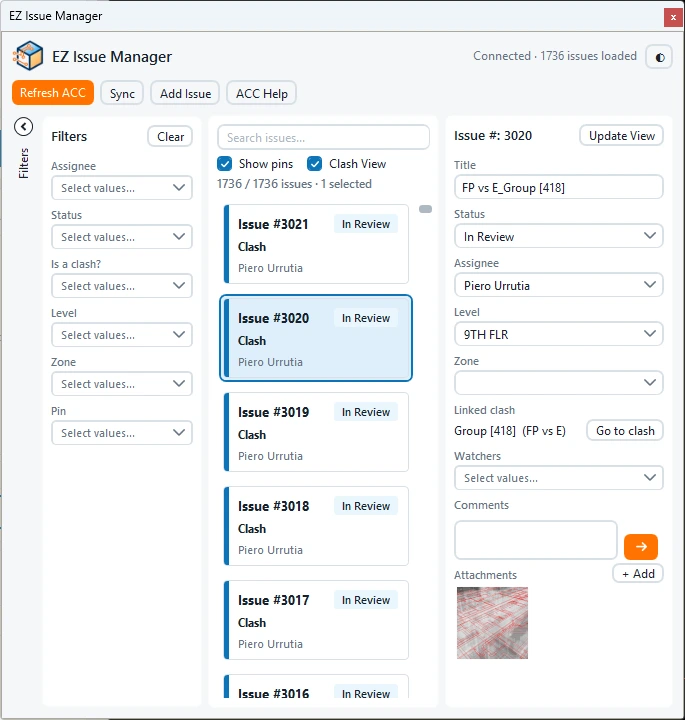
- Connect/refresh and verify the ACC project. Filter by assignee, status and level.
- Select an issue, inspect its saved view or pin and Go to clash when linked.
- For a quick cut with EZ Navigation enabled, double-click in the viewport to start Align to Surface, then click the surface you want to cut. Inspect the exposed issue context.
- Update title/location/responsibility as needed; choose only an available permitted status.
- Add a factual comment and image/PDF evidence. Verify these were posted.
- Sync ACC changes back into clashes and inspect the linked result.
Expected result: An issue with clear model context, responsibility and an auditable discussion.
Example: create a model issue without a clash
- Prepare the camera, click Add Issue and choose viewpoint settings.
- Pick the actual problem point in the viewport. Wait for creation to finish.
- Rename New Issue, choose assignee/location/watchers and add the explanation.
- Refresh and confirm the issue and its pin in the intended ACC project.
Expected result: A manually placed issue independent of a Clash Detective result.
Every button and parameter
Open a window or tab below to find its controls. Interface names match the plug-in; you can also search by function or unit.
20 of 20 reference entries
Connect and obtain the current issues
4 entries
Use the intended ACC project and an account with the relevant issue permissions. The list and pins are associated with the current document/project.
- Connect to ACC / Refresh
- Connects or refreshes the current ACC project, its issues and available metadata. Confirm project identity before editing. Reconnect/refresh after a project or document change instead of relying on an old list.
- ACC Help · App name / Client ID / Close
- Opens the account-integration and issue-permission instructions. The app name and public Client ID are read-only copy fields for the account administrator’s integration setup. Close dismisses help. Use the installed help values; do not enter an API secret here.
- Sync
- Reads ACC issue changes and updates their linked clash records. This direction is ACC → clashes; Clash Manager’s Sync Issues provides the separate creation/update workflow from clashes to ACC. Review linked status/assignment after syncing.
- Theme ◐
- Switches the viewer’s light/dark appearance without changing issue data.
Filters, search and model context
7 entries
Filtering narrows what is displayed; it does not change issue status or assignment. Pin display follows the filtered list.
- Assignee / Status filters
- Choose one or more displayed assignees or issue statuses. Combine filters to review a person’s active issues. Clear filters if an expected issue disappears.
- Is a clash? / Level / Zone filters
- Separate clash-linked issues from other issues and narrow by stored level/zone metadata. These labels depend on the project and issue data; missing metadata can appear as an unassigned/empty choice.
- Pins filter / Show pins
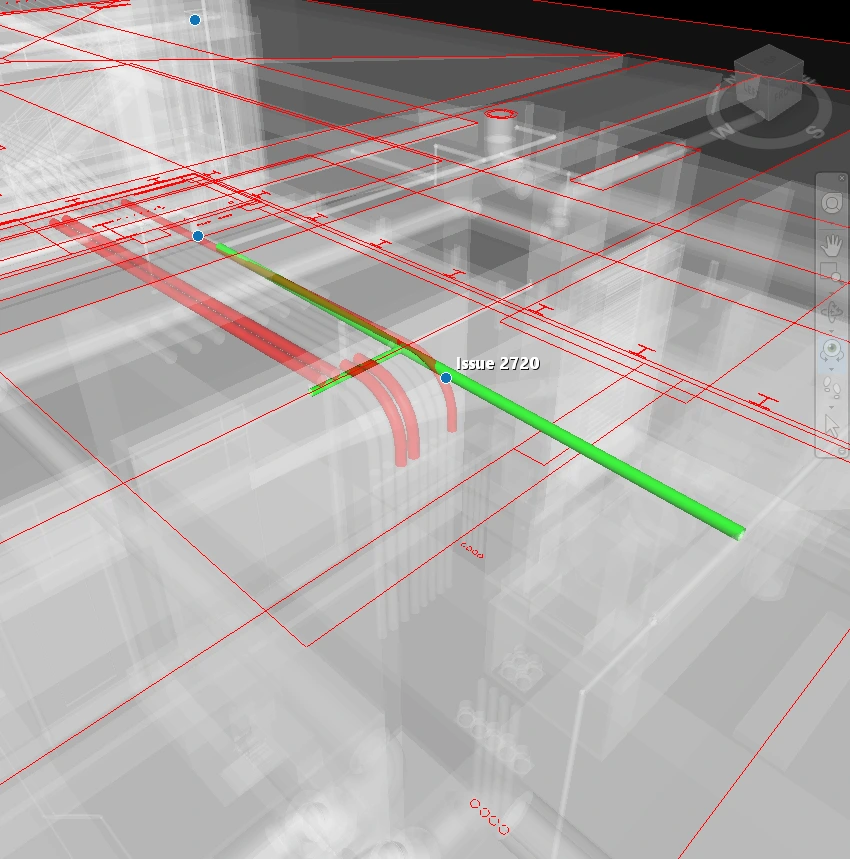
- Filter With pin or Without pin. Show pins draws available issue markers in the model; hover shows an issue label and clicking a marker opens its issue. An issue without resolvable model placement can remain in the list without a pin.
- Search / Clear Filters
- Search narrows the issue list by its searchable text. Clear Filters resets active filters so you can start a new review scope. Compare the list count with the intended selection.
- Clash View / Update View
- Clash View uses the linked clash context when available. For one selected issue, Update View opens viewpoint settings, updates its saved camera context and uploads a new screenshot to ACC. It leaves the existing pin untouched. Wait for the screenshot upload before verifying it; selecting an issue can restore its camera or frame its pin.
- Go to clash
- Selects the linked clash in Clash Manager and frames it in the model. Available only when the issue has a resolvable linked test/clash in the current document.
- Quick section while reviewing an issue · Double-click
- After navigating to the issue, enable EZ Navigation and double-click in the model viewport. This activates section Align to Surface. Then click the model surface you want to cut; the section aligns to that surface so you can inspect the issue context. The shortcut uses two actions: double-click to start alignment, then click the target surface.
Edit responsibility, title and status
5 entries
Edits can write to ACC directly; there is no universal Save button. Some fields apply when their dropdown closes, while title applies on Enter or focus loss. Review selection before bulk editing.
- Title
- Enter the issue’s descriptive title. Enter or leaving the field submits it. For multiple selected issues, verify that applying a common title is intentional. Prefer a title identifying the location and problem.
- Status
- Only statuses permitted for all selected issues are offered. Permissions and fetched metadata can disable the field. Choose the next project-approved state; do not infer that every issue supports every transition.
- Assignee
- Select a current project member responsible for resolving the issue. Available names come from project membership; refresh the project if a newly added user is absent. Closing the selection submits the change.
- Level / Zone
- Assign the issue’s location metadata using the available project/model choices. These fields support filtering and linked-clash coordination; inspect them after syncing rather than treating them as geometry movement commands.
- Watchers
- Select project members who should follow the issue. The multi-select updates the watcher list; it does not replace the accountable Assignee.
Comments, attachments and new issues
4 entries
Comment and attachment actions affect the selected ACC issue. Confirm selection and wait for the reported result before retrying.
- Comments / Send →
- Type the discussion update and Send comment to publish it. Read the issue’s comment history to avoid duplicating an already-posted message after a delayed response.
- Add attachment
- Select exactly one issue, then choose PNG, JPG/JPEG or PDF files; multiple files can be selected. This uploads evidence to ACC. Verify the issue, files and final attachment list, and inspect any partial-upload failure before retrying.
- Add Issue
- First choose the viewpoint settings, then click a real 3D point in the model to place the issue. The button prompts while waiting. Escape or right-click cancels the pick without creating an issue. A new issue begins as New Issue; replace its title and set responsibility.
- New-issue viewpoint settings
- Choose the current or named camera, projection, section mode/padding/offsets and screenshot circle as needed. Custom camera requires a finite non-zero XYZ vector. The shared Viewpoint settings reference in the EZ Clash Manager tutorial explains every field and the Navisworks 2027 saved-circle limitation.
Check the result
- Refresh after an edit and compare title, permitted status, assignee and attachments with ACC. Inspect a known pin against actual model geometry after link/model placement changes.
Troubleshooting and limits
- Read-only permissions or unavailable status metadata disable writes. A non-ACC or unresolved model may not supply a cloud-linked pin. Resolve project connection/permissions and model alignment rather than repeatedly creating duplicate issues.
Running it again
Refresh before editing; demonstrate changes on a sample project because issue actions can update shared project data.